
Assertions
An assertion is a maths block that holds one comparison. It doesn’t compute a number; it answers true or false, and answers again every time an input changes. It’s how a calcsheet states that the design works (or doesn’t) instead of leaving the reader to compare two numbers by eye.
Assertions are available on every plan.
Write a check
Section titled “Write a check”Define the values, then put the comparison in a block of its own:
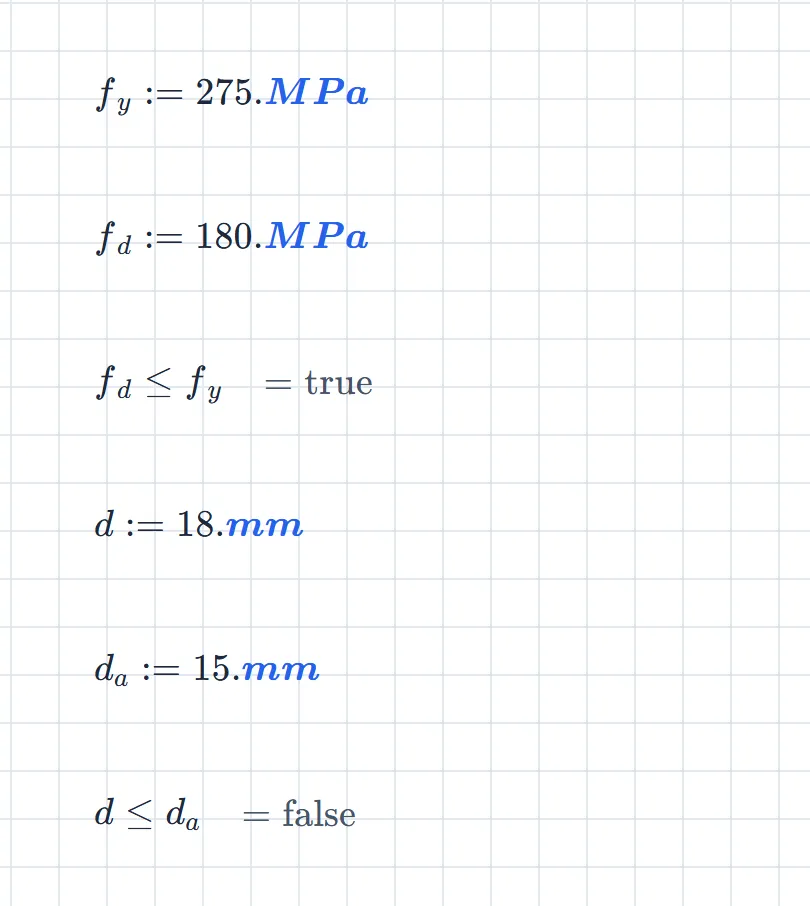
The third block reads and answers = true: a design stress of against a yield strength of . The last reads and answers = false: of deflection against an allowable .
A check is evaluated like any other block, top to bottom and left to right, so define what it compares above it. Change to and the first check flips to = false on the spot.
The six operators
Section titled “The six operators”| Check | Type | Toolbar button |
|---|---|---|
== |
= (Equal to) | |
!= |
≠ | |
< |
< | |
> |
> | |
<= |
≤ | |
>= |
≥ |
The buttons sit on the Boolean & conditional tab of the maths toolbar, which appears whenever the caret is in a maths block.

Typed <=, >= and != turn into , and as you type. == stays as two equals signs, and so does the = button: it inserts ==.
Equal means ==
Section titled “Equal means ==”A single = assigns. So does :=. Write n = 3 and you haven’t tested whether is 3, you’ve redefined it:
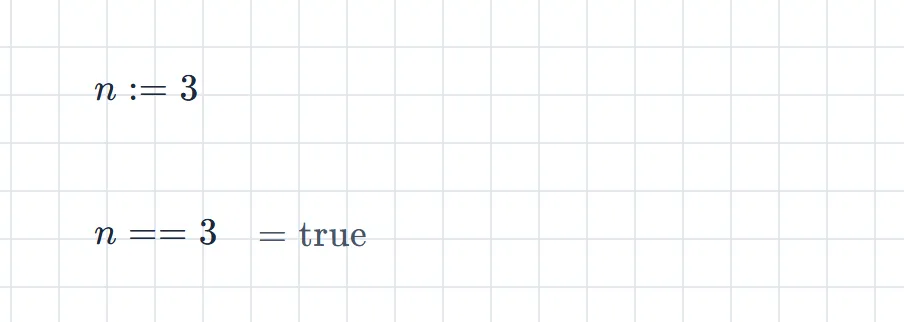
This is the commonest way to lose a check: type =, get a quiet redefinition where you wanted a verdict. For equality, always ==.
Reading the result
Section titled “Reading the result”On the page, a check shows = true or = false, like any other result. The page itself stays plain; the colour is in the sidebar.
Open the Navigate tab. Every check on the sheet is listed under Assertions, in reading order, with its status:
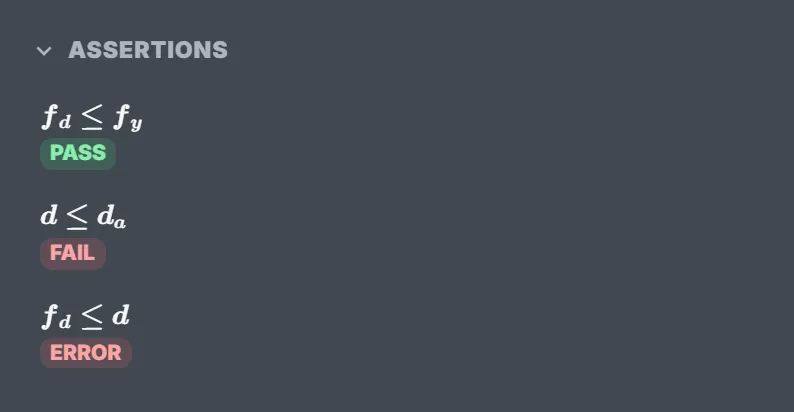
| Status | Means |
|---|---|
| PASS | The comparison is true. |
| FAIL | The comparison is false. |
| ERROR | It couldn’t be evaluated. |
Click an entry to jump to its block. Before you print a sheet or hand it over, scan the list for anything that isn’t green.
Whether a check shows its = true on the page follows the sheet’s Show expression evaluations by default setting (see Calcsheet options). Right-click a block and choose Hide Evaluation or Show Evaluation to override it for that block. Hiding the answer doesn’t remove the check from the list.
When a check errors
Section titled “When a check errors”A check that can’t be evaluated shows a red message in the block and ERROR in the list. It is neither a pass nor a fail.
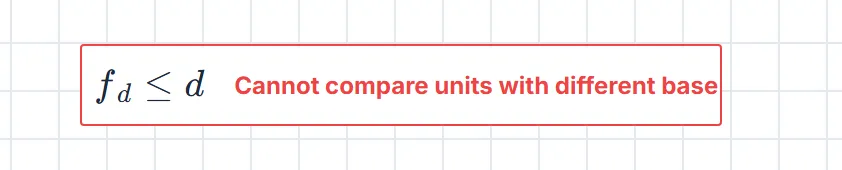
The usual causes are a name that isn’t defined (Undefined symbol …) and a comparison between different kinds of quantity, as above. A check you can’t evaluate is a check you haven’t done.
What can be compared
Section titled “What can be compared”Numbers and units. Units are converted before comparing, so is true and is true. Different kinds of quantity (a stress against a length) can’t be compared; that’s the error above.
Full precision, not the displayed figure. Results are rounded to the sheet’s decimal places for display, but a check compares the stored value. With , the result reads at four places, yet is = false. Floating-point dust is forgiven: is = true.
Text. Two pieces of text compare as labels: exactly, and case-sensitively. "M12" == "M12" is true; "M12" == "m12" is false. Text against a number is simply false, not an error. Press “ to type text in a maths block (see Keyboard shortcuts).
Vectors and matrices. Compared element by element. The block shows a true or false for each element, and the check passes only if every one is true. With , passes and fails.
When a check isn’t a check
Section titled “When a check isn’t a check”The rule: a check is a block that is one comparison and nothing else. If it appears under Assertions, it’s a check. If it doesn’t, it isn’t, whatever the block says.
- Chained comparisons.
0 < x < 10is read as0 < x. Everything after the second operand is dropped, with no error, so with the block0 < x < 3answers= true. Write two checks. andandorconditions.(x > 0) ∧ (x < 10)evaluates and shows= true, but it has no PASS or FAIL and isn’t listed. Write two checks, or use the condition inside anif.- Assigning the answer.
ok := x > 3definesokas true or false. That’s a useful flag, and a definition, not a check. - Comparisons inside brackets. In
if(x > 0, 1, 2)the comparison belongs to theif. It doesn’t make the block a check.
See also
Section titled “See also”- Calcsheet options for the evaluation-display defaults.
- Keyboard shortcuts for the keys inside maths blocks.