
Calcsheet options
The calcsheet options dialog holds the settings that govern a whole sheet: its metadata, how results are displayed, what the page looks like and how it is saved. The defaults are sensible. Open the dialog when you want to change one.
Opening it
Section titled “Opening it”Press the cog beside the calcsheet’s name in the header. It also opens by itself when you start a New maths sheet, so you can set the page up before you write anything.
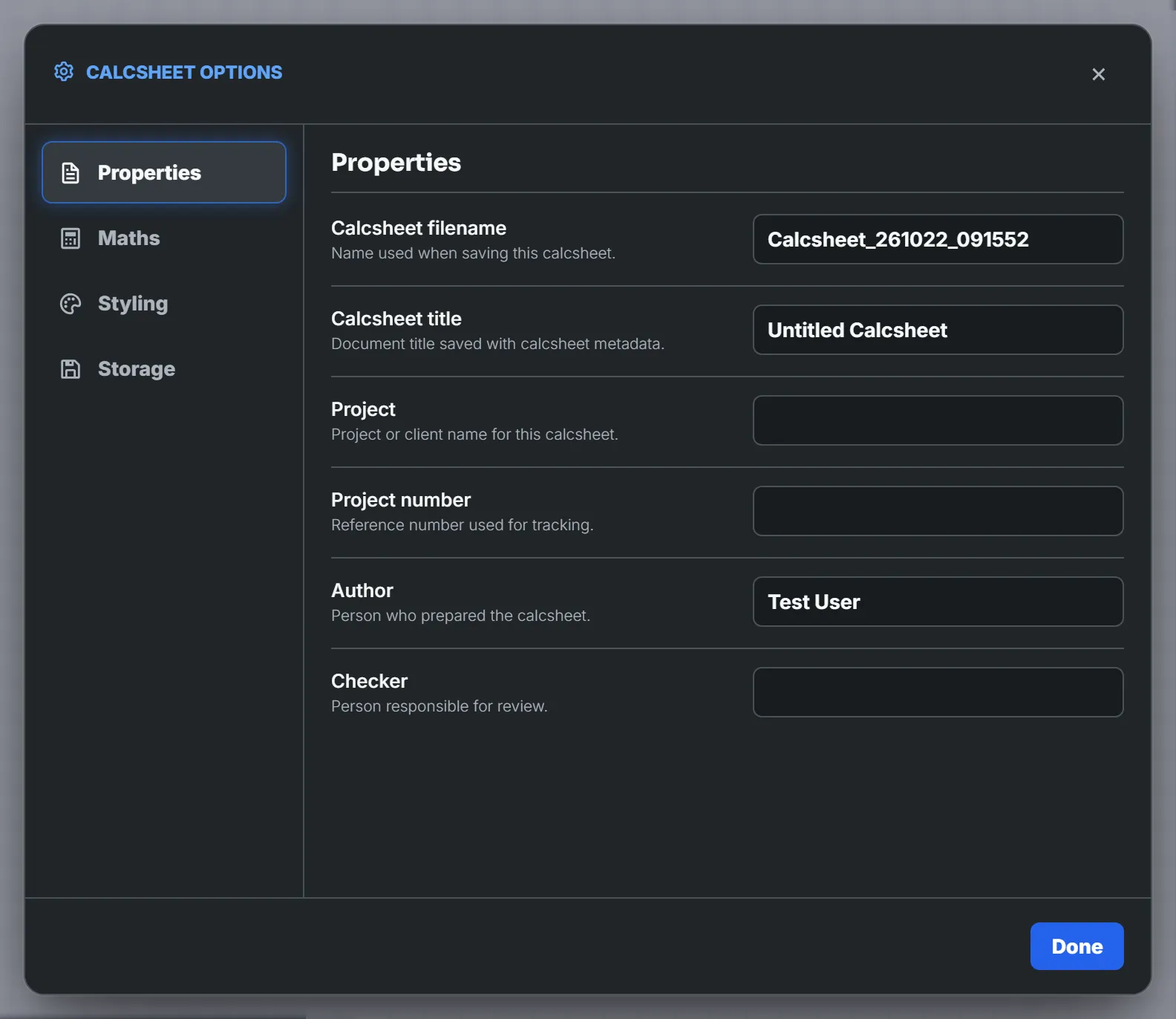
Four pages run down the left: Properties, Maths, Styling and Storage. Changes apply the moment you make them. There is no Apply and no Cancel; Done, the ×, Esc and a click outside the dialog all just close it. Changes to the calcsheet’s own settings are ordinary edits, so Ctrl + Z undoes them once the dialog is closed.
Most settings are saved with the calcsheet and travel with the file. A handful are yours instead: saved to your account (or to this browser, if you’re trying Maths Explore without one) and applied to every calcsheet you open. Each of those says so in its small print, and the sections below flag them.
Properties
Section titled “Properties”The sheet’s identity. All text fields.
| Field | Holds |
|---|---|
| Calcsheet filename | The name used when saving. It is the same name as the box in the header. |
| Calcsheet title | The document title saved with the calcsheet. |
| Project | Project or client name. |
| Project number | Your reference number. |
| Author | Who prepared the sheet. A new sheet fills this with your account name; once you edit it, it stays yours. |
| Checker | Who reviews it. |
A new sheet starts with a generated filename (Calcsheet_ followed by the date and time) and the title Untitled Calcsheet. Name a fresh sheet in either field and the other follows, so you only type it once. While the other field still holds its default it copies what you type; type in that field yourself and the two go their own ways. Once both have real names they stay independent.
Using properties in your text
Section titled “Using properties in your text”Every property is available in text blocks as a token in braces. Type {project} and the block shows the project’s name; change the property and every token updates. Text blocks suggest the tokens as you type.
| Token | Gives |
|---|---|
{title} |
The calcsheet title. |
{project} |
The project. |
{projectNumber} |
The project number. |
{author} |
The author. |
{checker} |
The checker. |
{currentDate} |
Today’s date, as dd/mm/yy. |
{pageNumber} |
The page the block is on. |
{pageCount} |
The total number of pages. |
The last three have no field; the sheet supplies them. Capitalisation doesn’t matter and hyphens and underscores are ignored, so {project-number} works. A name that isn’t a property is left as typed. The page tokens earn their keep in headers and footers on a background template, which is drawn once per page, so each page shows its own number.
How results are calculated and shown. Saved with the calcsheet, except the multi-line if switch.
Chooses which unit a result is displayed in when more than one is correct.
- SI is the default and leaves results as the maths engine gives them.
- Structural prefers engineering units: a force times a length shows as a moment, , rather than energy in joules (), and a force per length shows as . It picks the smallest prefix that keeps the number under 1000, so reads as .
The list also shows US Customary, Electrical and Thermal. They are placeholders for now and behave exactly like SI.
This sets the default only. A block’s own result-unit field overrides it for that block.
Global decimal places
Section titled “Global decimal places”How many decimal places results are rounded to, from 0 to 10. The default is 4. Any block can override it from its right-click menu (Decimal Rounding). Blocks without an override follow the global setting, including when you change it later; blocks that have one keep theirs.
Evaluation display
Section titled “Evaluation display”Two switches decide whether a block shows its = result:
| Switch | Default | Applies to |
|---|---|---|
| Show variable evaluations by default | Off | Variable definitions such as a := 3.m. |
| Show expression evaluations by default | On | Plain expressions such as a + 2.m. |
Neither is final. Right-click any block and choose Show Evaluation or Hide Evaluation to override the default for that block alone.
Multi-line if statements by default
Section titled “Multi-line if statements by default”On by default. When on, the if button on the maths toolbar inserts the multi-line if / else layout; when off, it inserts the inline call. It only affects what the toolbar inserts. To switch a block you already have, right-click it and choose Expand If Statement or Inline If Statement.
This one is yours: saved to your account, not the calcsheet.
Styling
Section titled “Styling”What the page looks like.
Page background template
Section titled “Page background template”One drop-down, three kinds of background:
- Plain, Grid, Ruled and Dot Grid are paper patterns. Grid is what a new calcsheet starts with.
- A4 Calculation Sheet (Default) and Choose template… apply stationery: a background template, drawn behind your work on every page. Choose template… opens the picker; once a template is applied its name appears in the drop-down. Templates are tied to your account, so trying Maths Explore without one asks you to sign up first.
- From SVG file uses an SVG image of your own as the page background. Choose it and an SVG background file row appears for picking the file; Clear removes it. A file with no
<svg>in it is refused with “Choose a valid SVG file.”
The two kinds don’t mix. Applying a template resets the pattern to Plain, because a leftover grid would show through the stationery, and picking a pattern or an SVG while a template is applied removes the template. Each is a single undo step.
If the template defines an editable area (the part of the page you’re meant to write in), a Strictly follow editable area switch appears. On, the default, blocks are held inside that area. Off, you can place them anywhere on the page.
Paper size
Section titled “Paper size”A4 or US Letter. Changing it resizes the page and refits any page breaks to the new width.
Text block theme
Section titled “Text block theme”The look of rendered text blocks, sheet-wide: Classic (the default), Human or Droid. Beside it, three swatches set the heading colour: black (the default), red or blue.
Block size
Section titled “Block size”Normal or Small. Small scales page text and maths down to 80%, on screen and in print.
Print & pdf export maths colouring
Section titled “Print & pdf export maths colouring”On screen, maths is colour-coded: units, your own functions and the built-in functions each get a colour. This setting decides whether print and PDF export keep it.
- Colour-keyed, the default, prints them in their colours.
- Plain prints all maths in the ordinary maths colour.
The canvas is always colour-keyed; this only changes the printed page. It’s yours, not the calcsheet’s: saved to your account, or to this browser if you’re a guest.
Storage
Section titled “Storage”Two switches control autosave. Both are yours.
| Switch | Default | What it does |
|---|---|---|
| Autosave | On | Keeps an autosaved copy of your open calcsheets in this browser as you work, a moment after you stop typing. They are listed under Autosaved on the Home page until you save them to a file. Off means calcsheets are kept only where you save them. |
| Also autosave to the file | Off | Once a calcsheet is saved to a file on your computer, also write every change to that file automatically. After reopening the browser, press Save once to allow writing again. |
File autosave needs a browser with file access, which means Chrome or Edge. Elsewhere the switch is shown but disabled.
Trying Maths Explore without an account changes the wording but not the idea. Autosave keeps the sheet you’re trying in this browser, so a refresh doesn’t lose it, and signing up takes the sheet with you whichever way the switch is set. Saving to a file needs an account, so the second switch is disabled.
Save as default settings
Section titled “Save as default settings”New calcsheets start from your defaults. When you’re signed in and the current settings differ from your saved defaults, a Save as default settings button appears at the bottom of the dialog. Press it and the hint “Applies to new calcsheets.” gives way to a “Saved as your default” confirmation.
What gets saved: units, decimal places, both evaluation switches, the page pattern (and an SVG background, if you chose one), the editable-area switch, paper size, text theme, heading colour and block size.
What doesn’t:
- Properties. Title, project and the rest belong to one sheet.
- An applied background template. A template isn’t an option, so apply it per sheet. Applying one sets the pattern to Plain, which means defaults saved while a template is applied store Plain.
- The personal switches (multi-line
if, print colouring, autosave). They already apply everywhere.
Defaults only seed new calcsheets. Existing ones keep the options they were saved with.